Appearance
Notes
Creating a note
You need a folder to create the note. So, click the + icon right side of Folders, Then give a name and hit enter Now click the
 + icon right side of Notes and give a note name and hit enter. 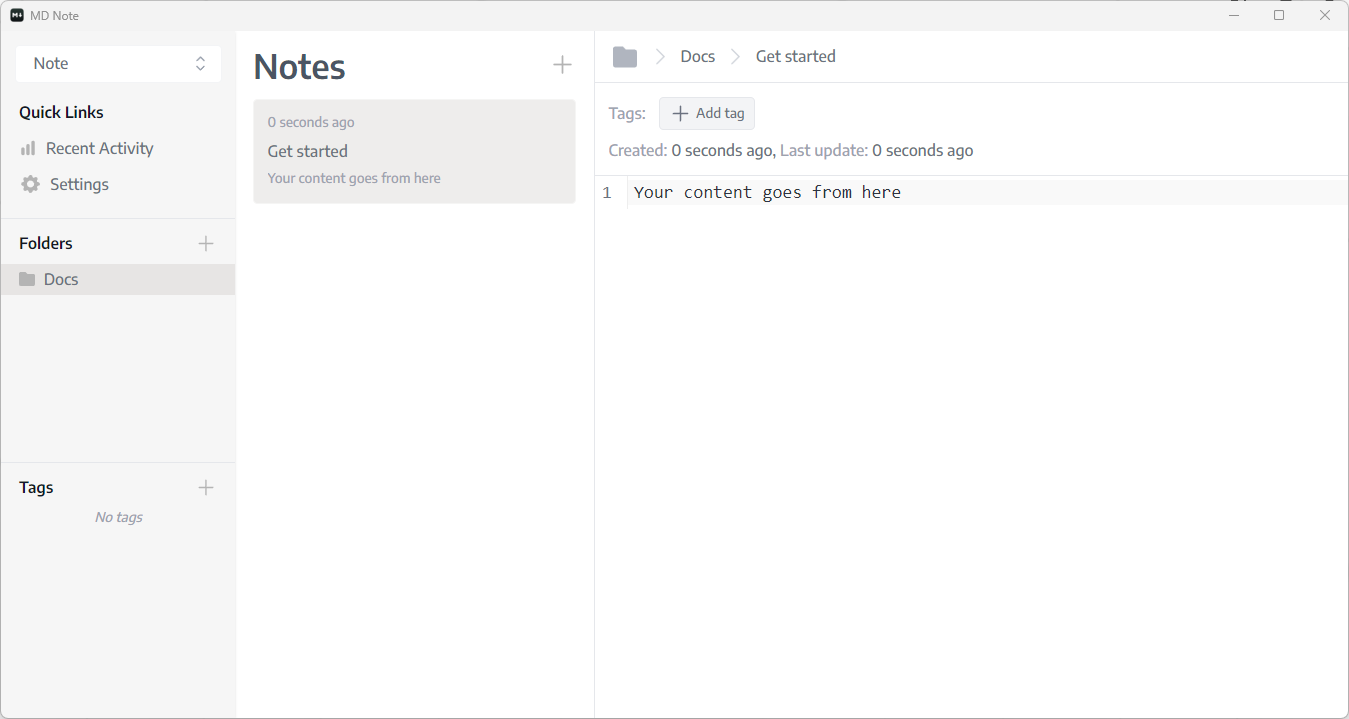 You can now write your content. MD Notes are support Markdown syntax.
Preview Note
You can click preview of bottom right of your note page to open note preview. 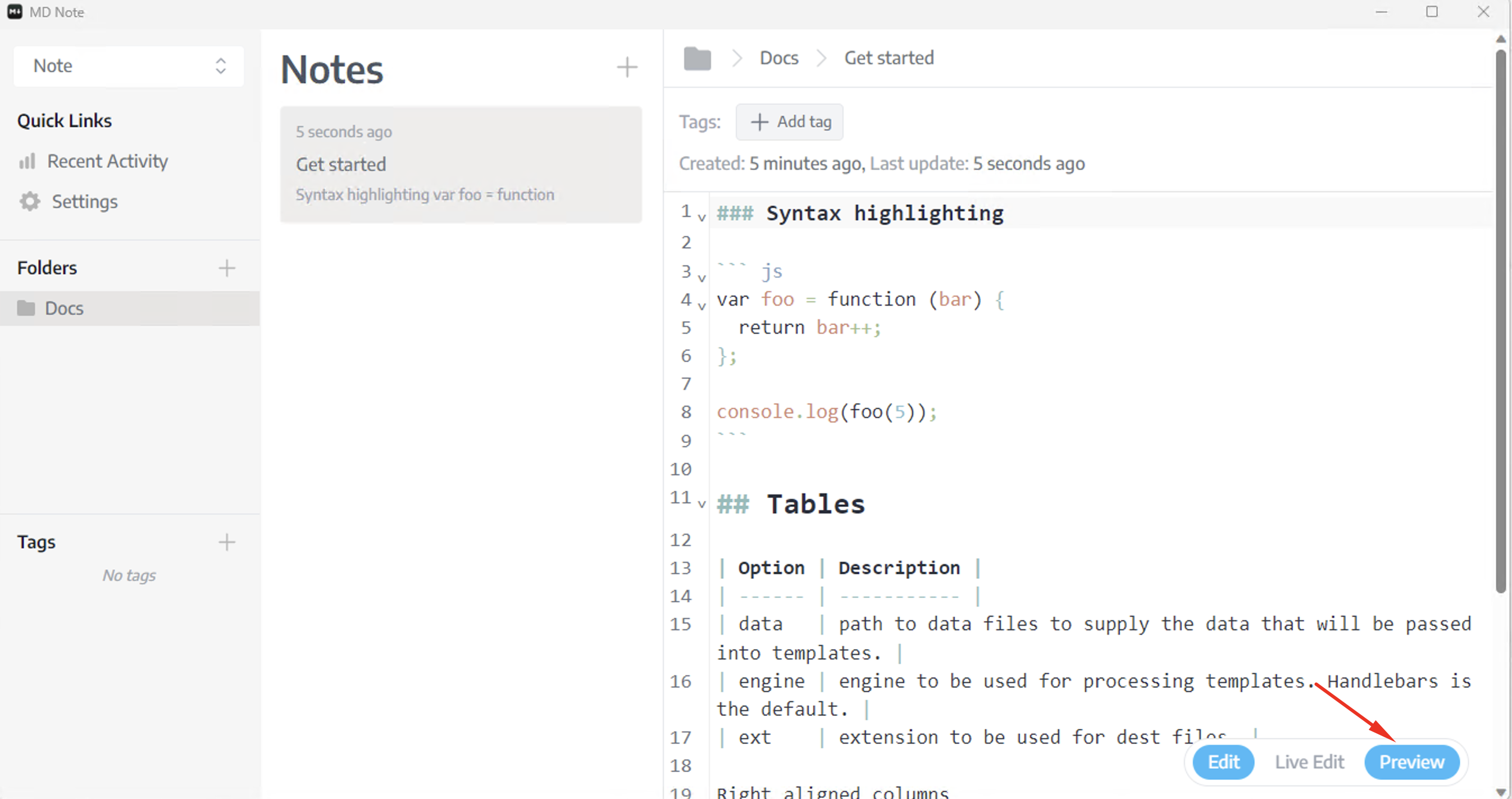
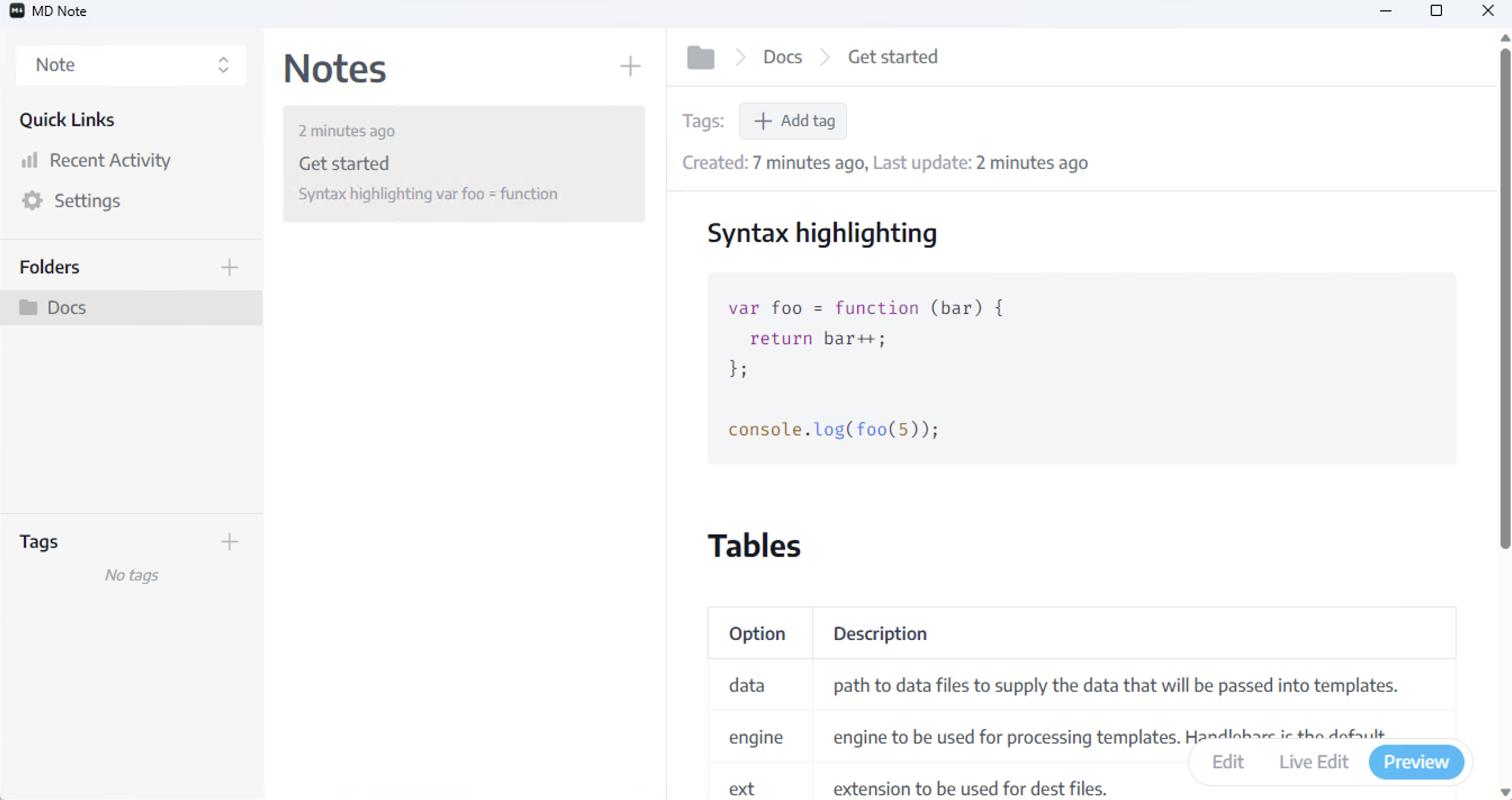
Live Preview
Click the live preview to edit and view your notes at the same time 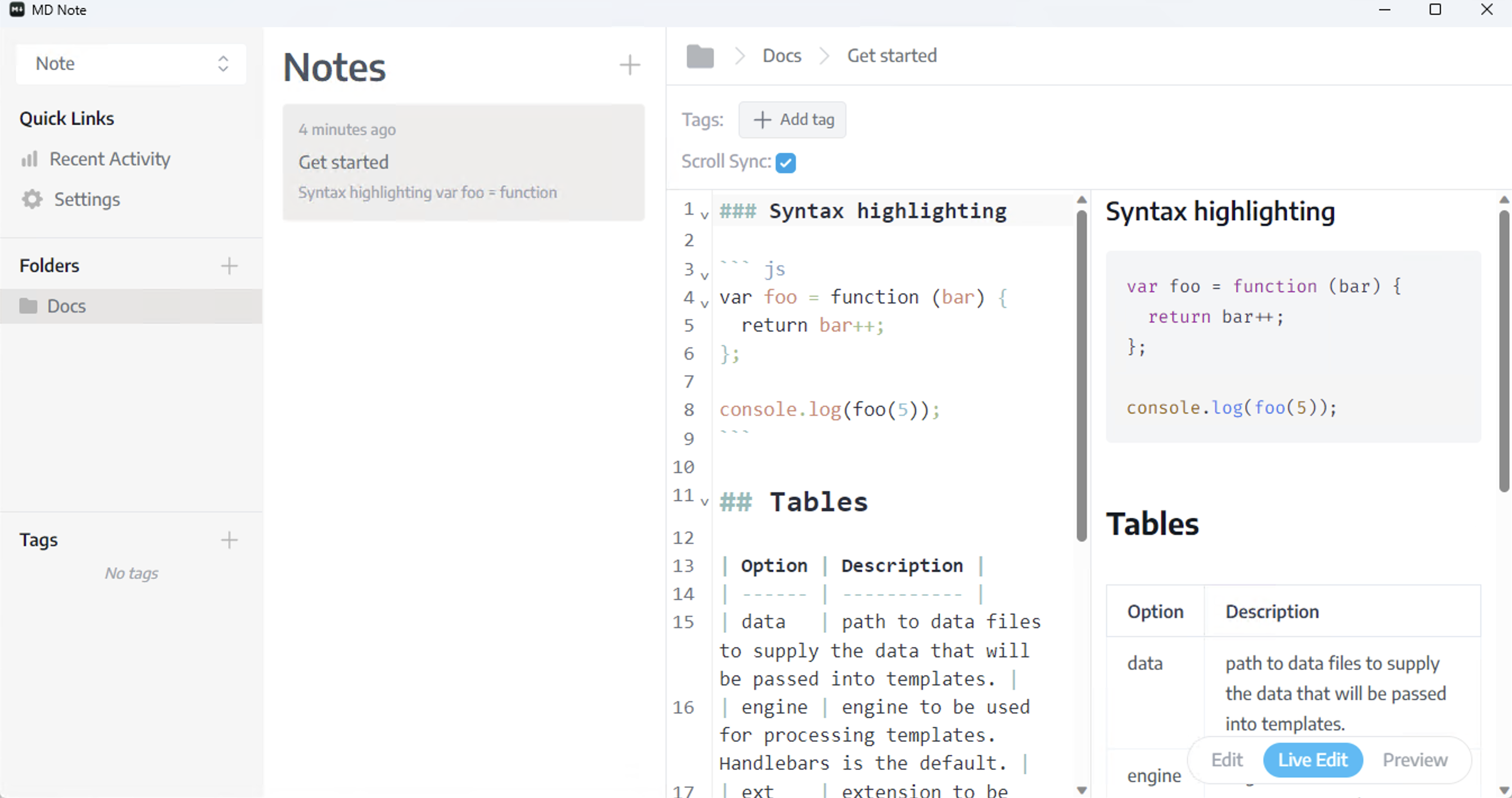
Edit
To edit the note title, you need to right-click the note and click Rename, after renaming the note hit enter to save. 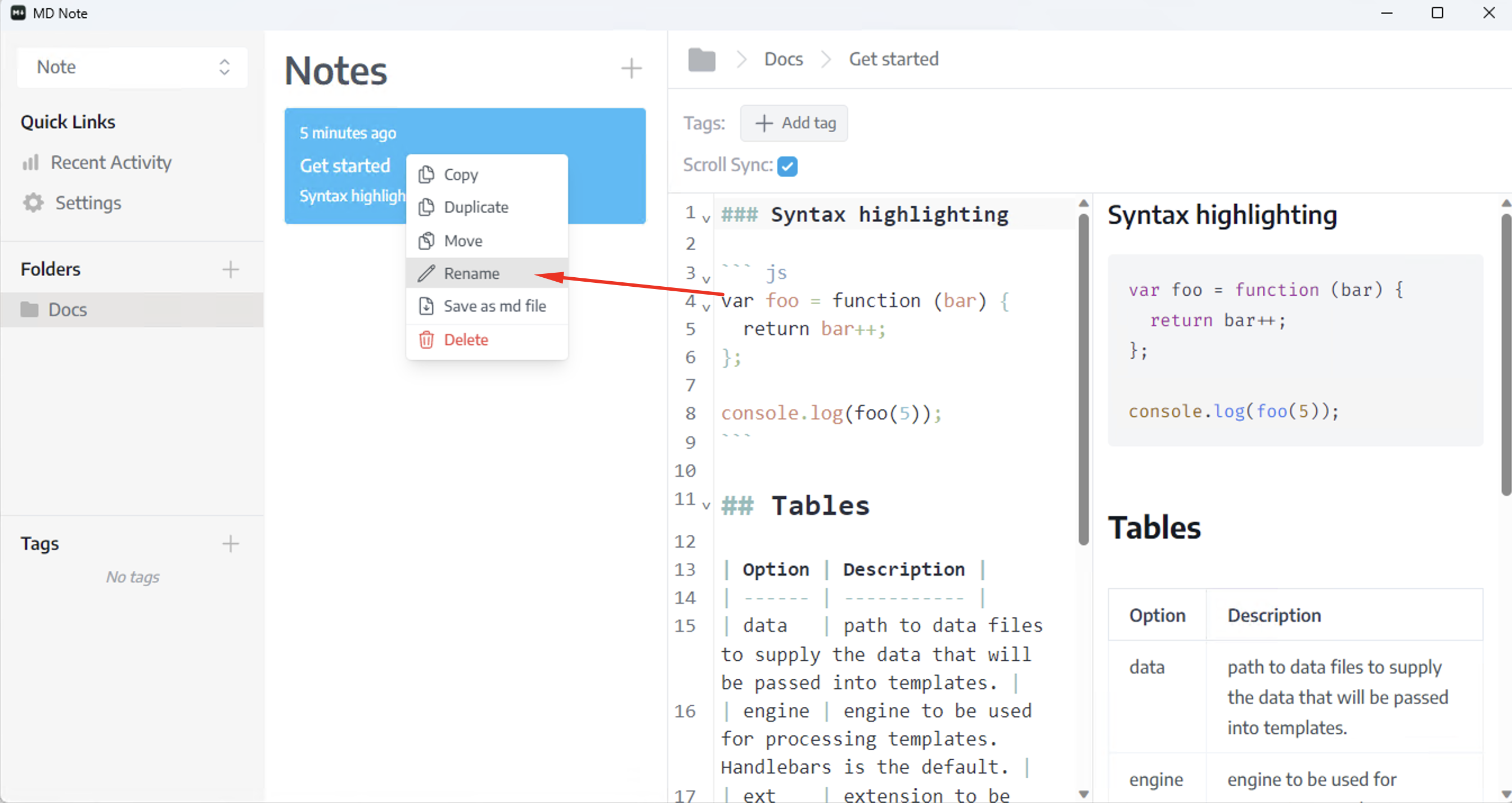
Task
You can manage tasks from your note, also you get the progress of your tasks. 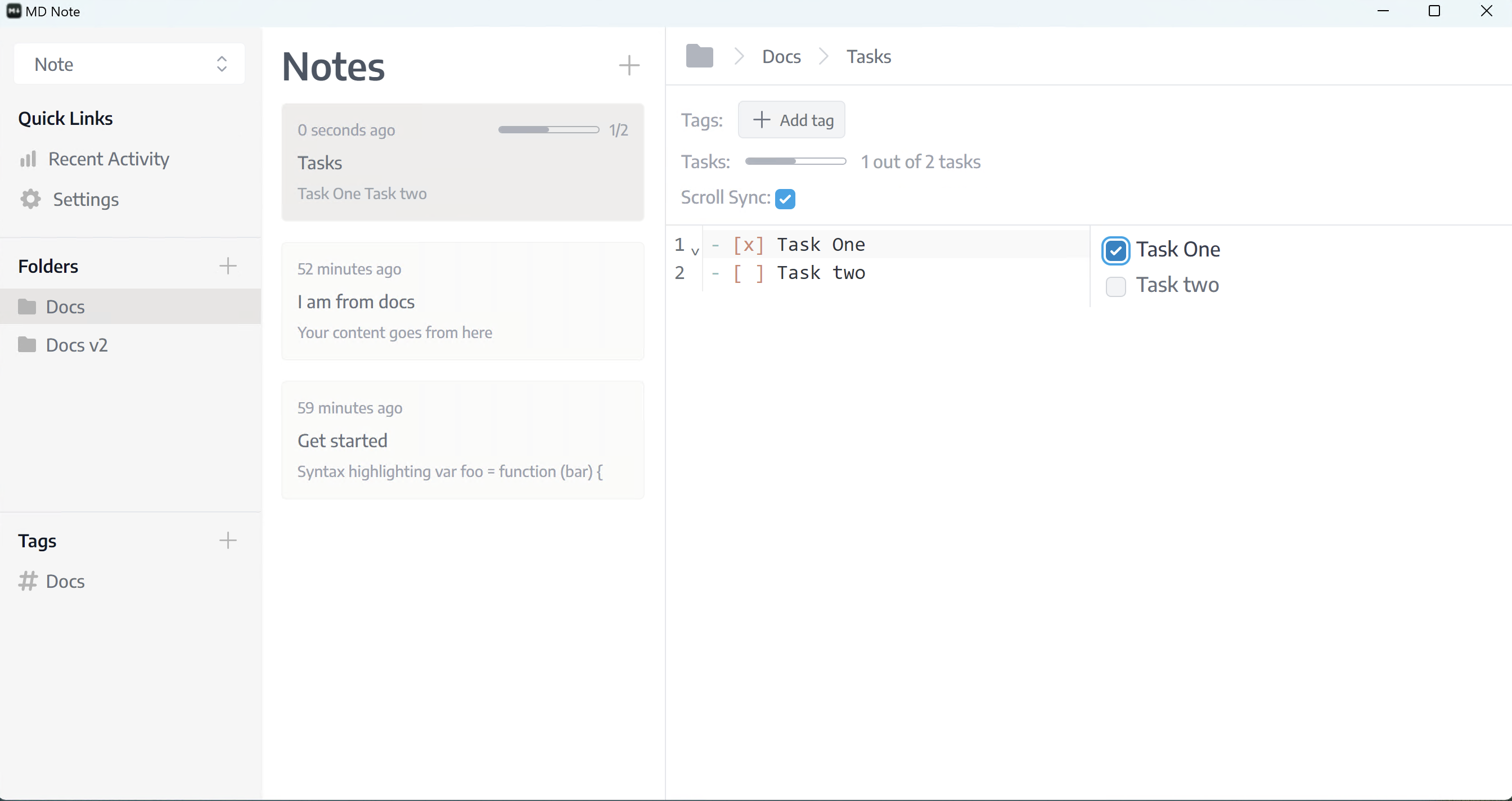
Math
You can write math expression inside of notes and get output on the preview page. 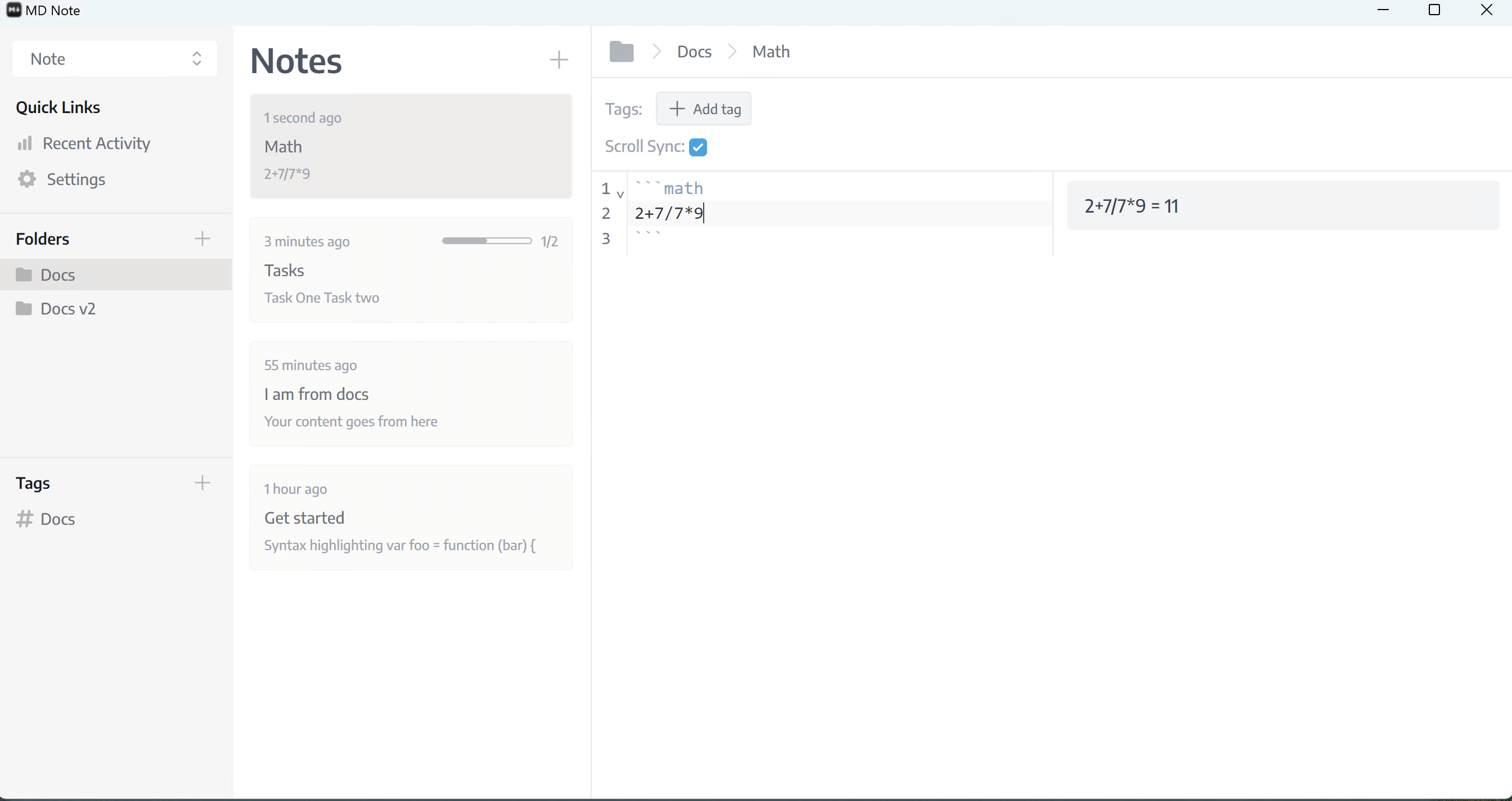
Diagram
Can be draw diagram using mermaid syntax Learn More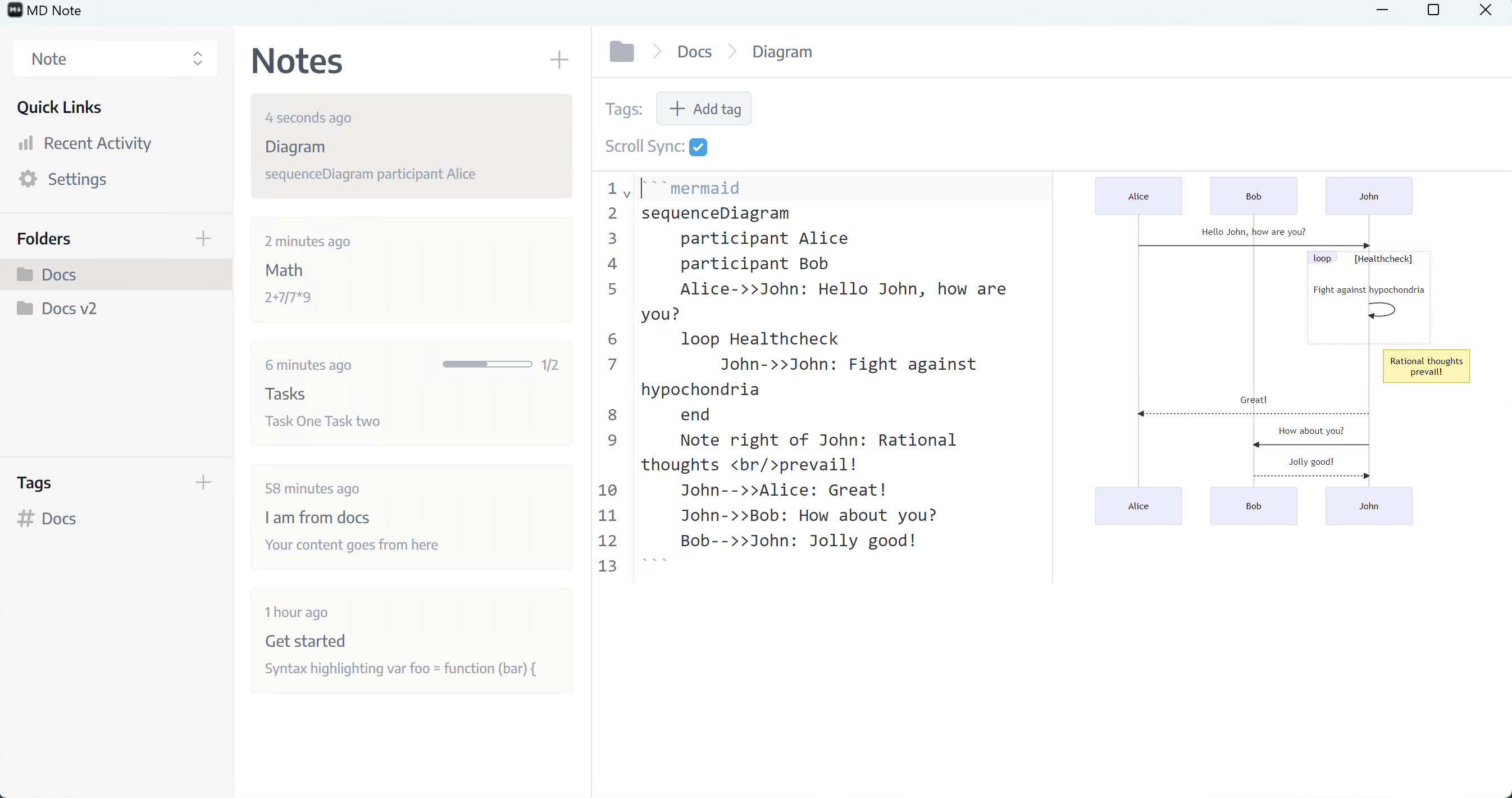
Syntax highlighting
Syntax highlighting is working seamlessly 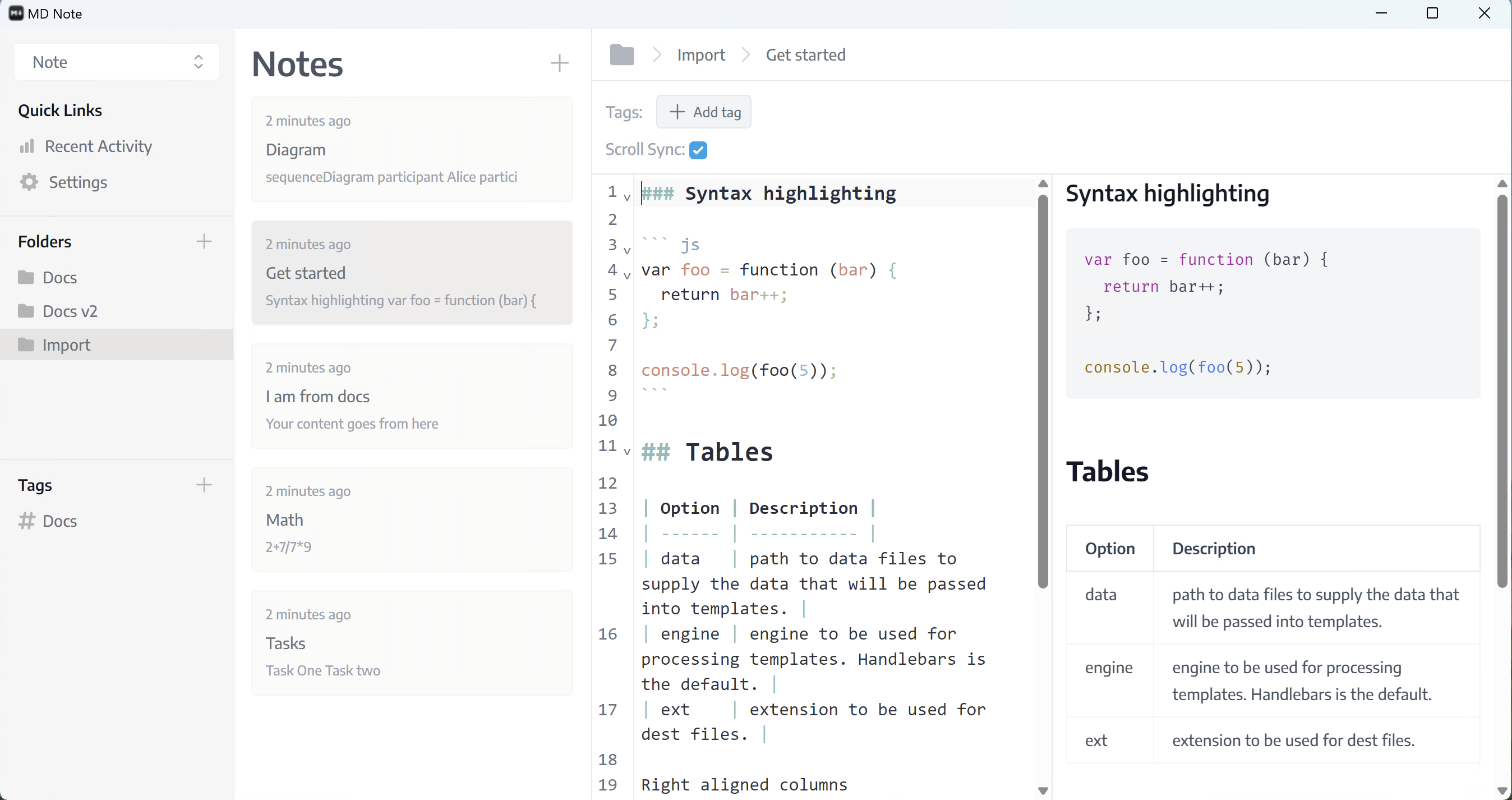
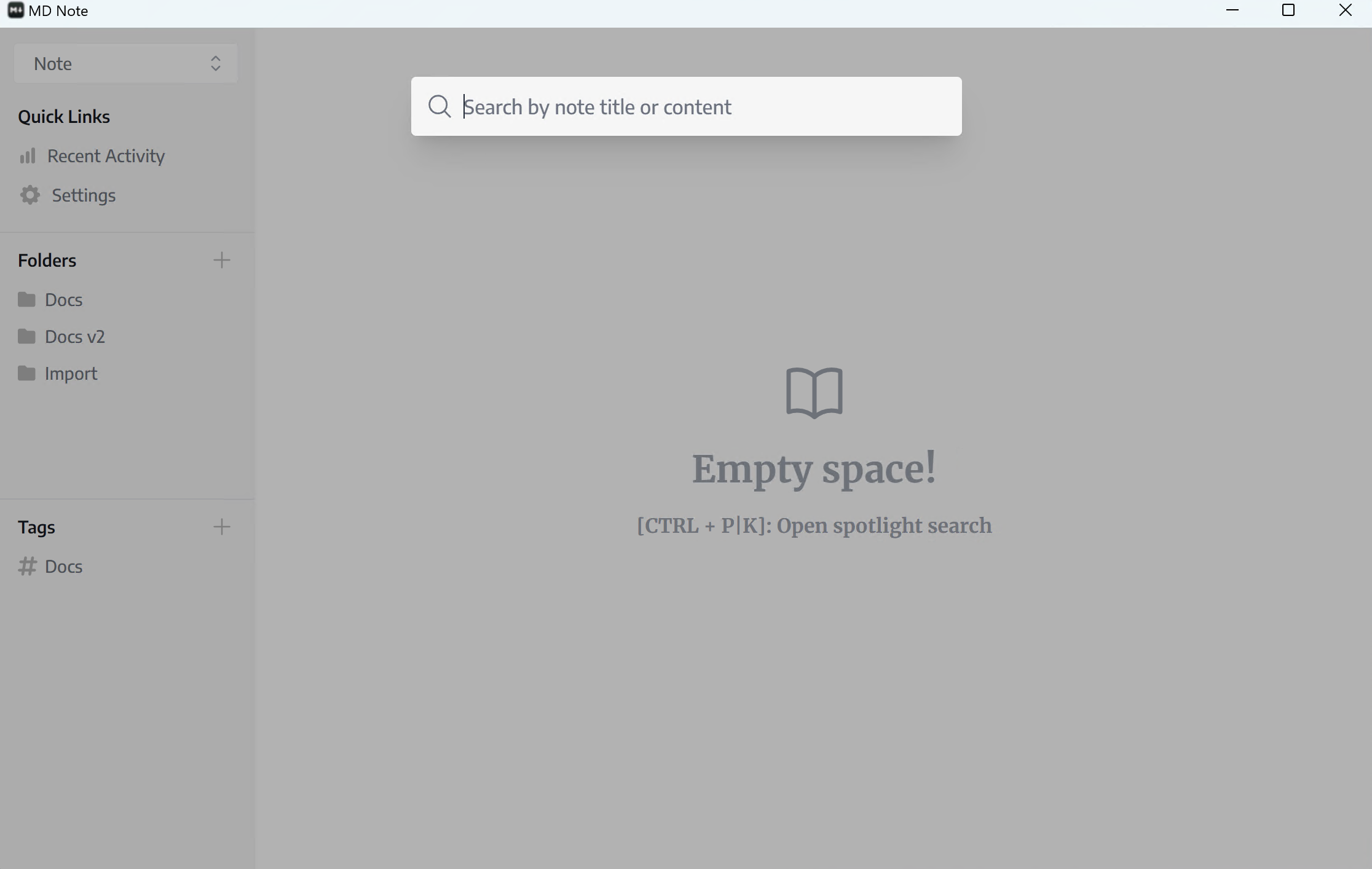
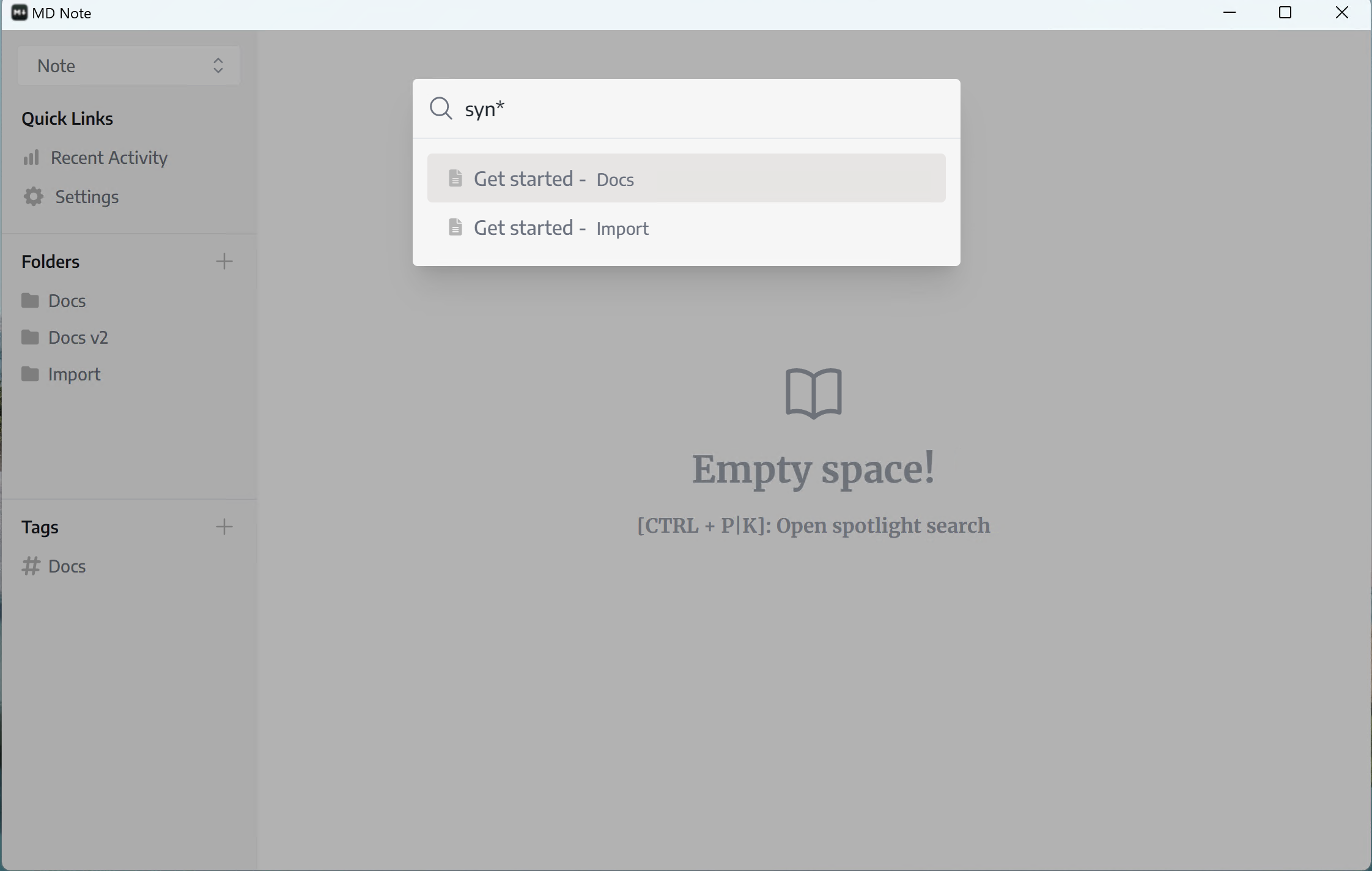
Search (Spotlight)
Pressing Ctrl+P or Ctrl+K will be activated spotlight search. You can search by note's title or content using full text search syntax Check out those following links
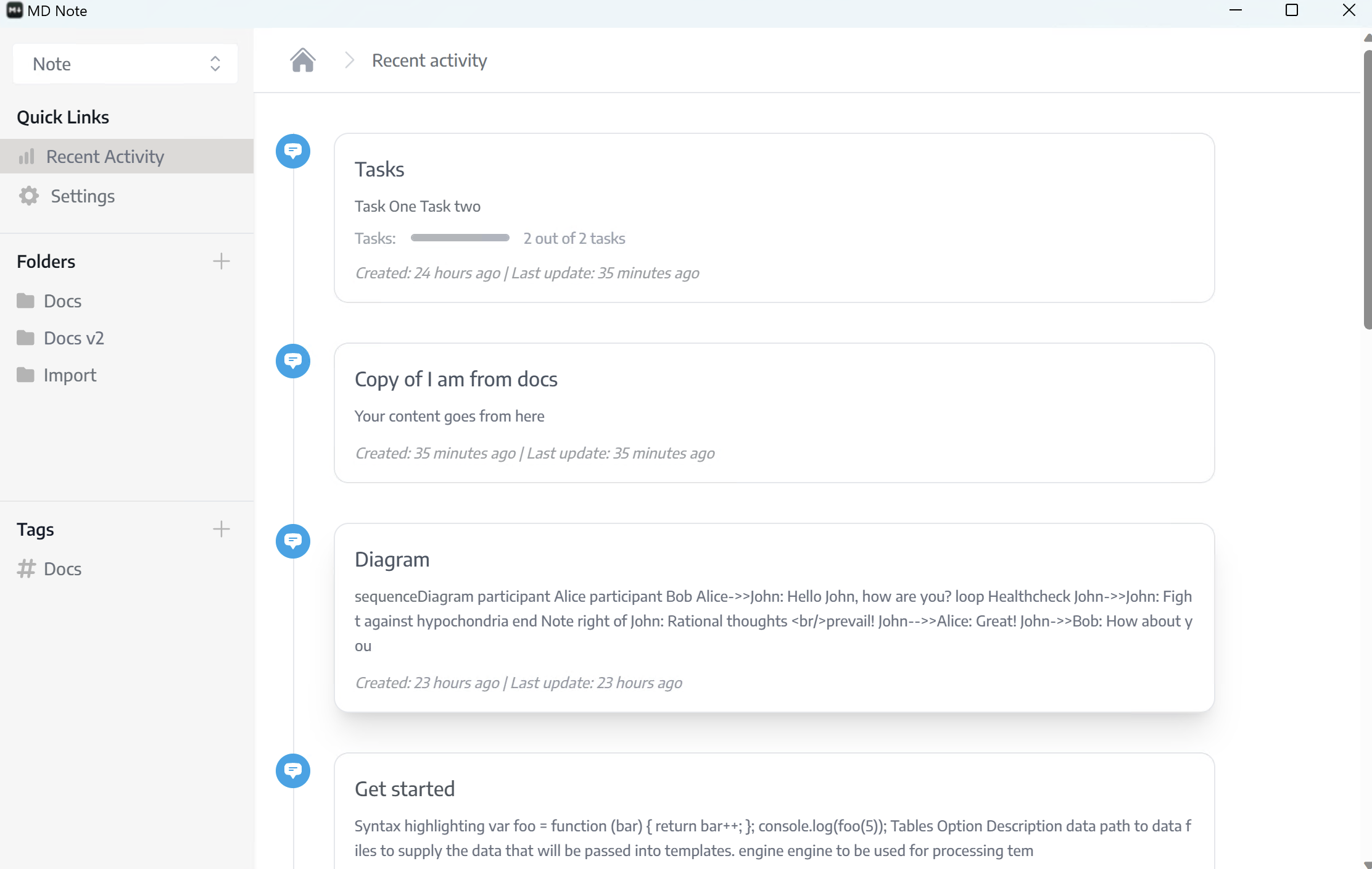
Recent Activity
Recent activity will give you lists of notes which were edited recently.